Spare Transfer DC
How to Receive COCO Spare Shipments in Gain DMS: A Step-by-Step Guide
Table of Contents
Overview
Industry Standard Process Understanding
Gain DMS Spare Receive Tutorial Video
Navigation Path
Step-by-Step Process to Receive Spare Parts
Step 1: Open Spares Transfer DC
Step 2: Locate and Initiate Receipt
Step 3: Quality Control and Bin Assignment
Step 4: Save and Update Local Inventory
Important Business Rules
Process Outcome
Conclusion
Overview
The Spare Receive process is used to record and accept physical inventory shipped from another COCO (Company Owned and Company Operated) location into your local dealership via the Gain DMS.
Important Note: Spare transfer will happen in SAP only for COCO to COCO spare transfers. However, the physical spare receive must be done in the DMS to complete the workflow and update local stock.
This process helps the parts department accurately log incoming shipments, ensuring the local inventory is perfectly synchronized with the physical stock sitting on your loading dock. Receiving parts in the DMS is a mandatory step in the inventory workflow because service advisors and technicians cannot allocate spare parts to active job cards until those items are officially received into the local system.
Industry Standard Process Understanding
In the fast-paced automobile industry, an efficient spare parts department is the heartbeat of a profitable workshop. When a customer's vehicle is occupying a service bay, every minute counts.
A Parts Manager or Inventory Executive is responsible for accurately documenting:
Incoming physical shipments
Verifying received quantities against dispatch records
Assigning storage locations (bins) for quick retrieval
This standard process ensures:
Absolute accuracy between physical and digital stock
Immediate availability of parts for technicians
Prevention of delays in customer vehicle repairs
Improved first-time fix ratios
While the actual dispatching and transferring of parts between COCO branches is handled centrally through SAP, the critical handover—bringing those parts into your local ecosystem—relies entirely on this structured receiving process within the DMS.
Gain DMS Spare Receive Tutorial Video
Navigation Path
Left Navigation Menu → SPARES → Spares Transfer DC
Step-by-Step Process to Receive Spare Parts
Step 1: Open Spares Transfer DC
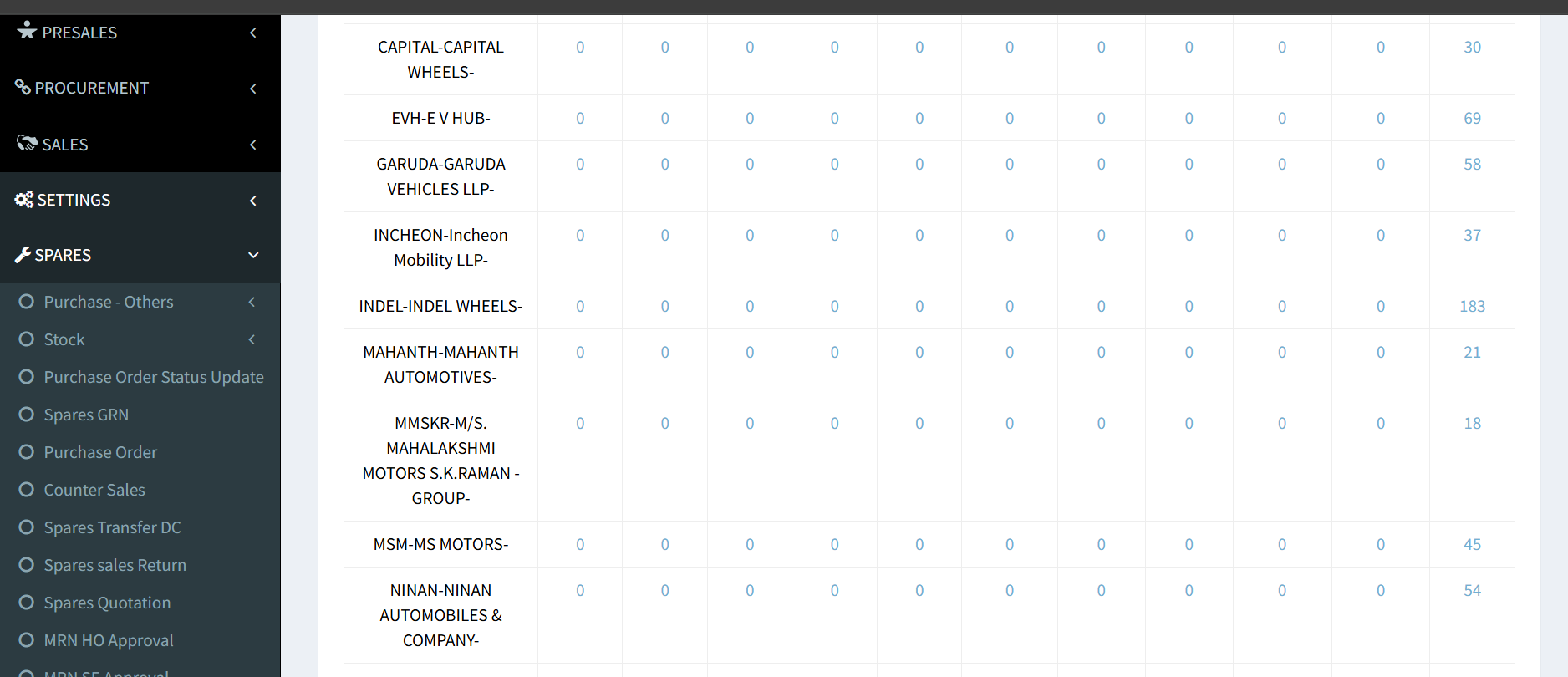
Your journey begins on the main dashboard of the Gain DMS. Because this task revolves around physical inventory, you will need to access the dedicated parts modules.
Locate the main navigation menu on the left side of your screen.
Click on the SPARES module to expand your options.
Click on Spares Transfer DC.
The system will open the Delivery Challan screen, which acts as your digital loading dock, queuing all incoming shipments sent via SAP.
Step 2: Locate and Initiate Receipt
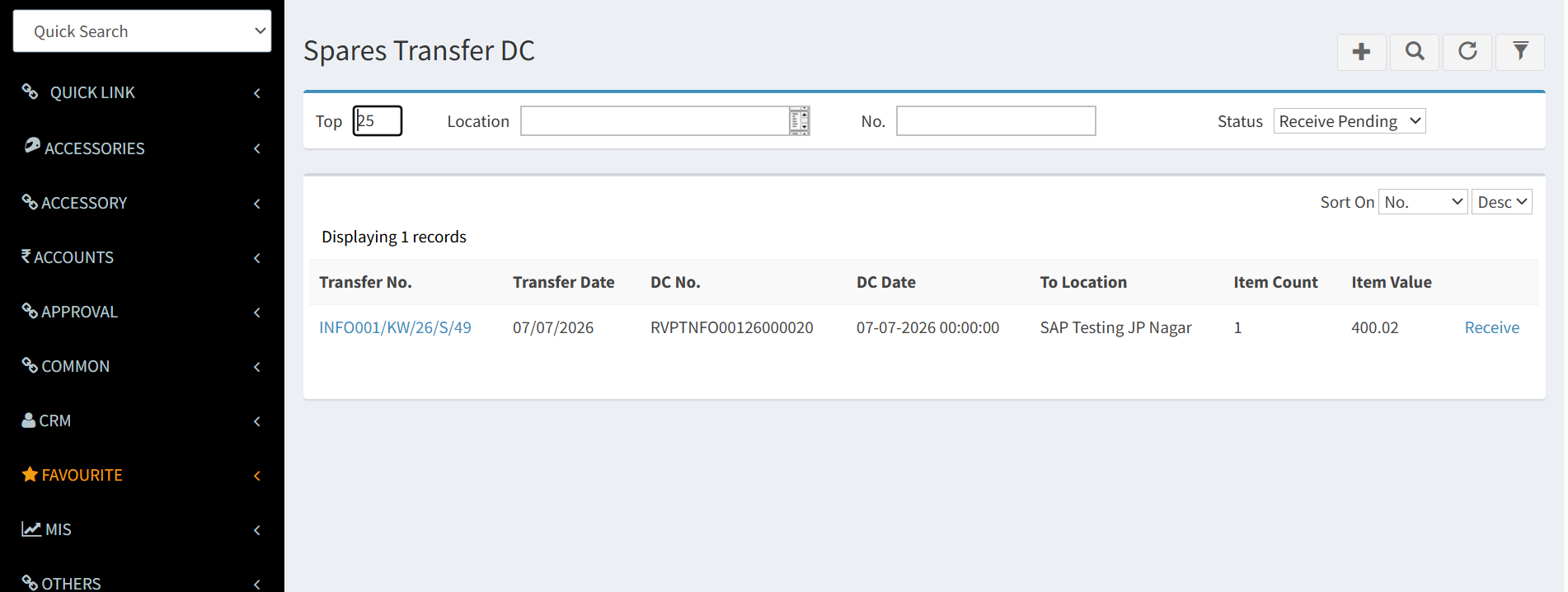
Now that you are in the Spares Transfer DC screen, you will see a list of pending transactions that have been pushed to your location.
Once you have identified the correct transfer record, look to the far right of that specific row.
Click the Receive link.
The system will open the "Spares Transfer In" detailed entry screen.
Step 3: Quality Control and Bin Assignment
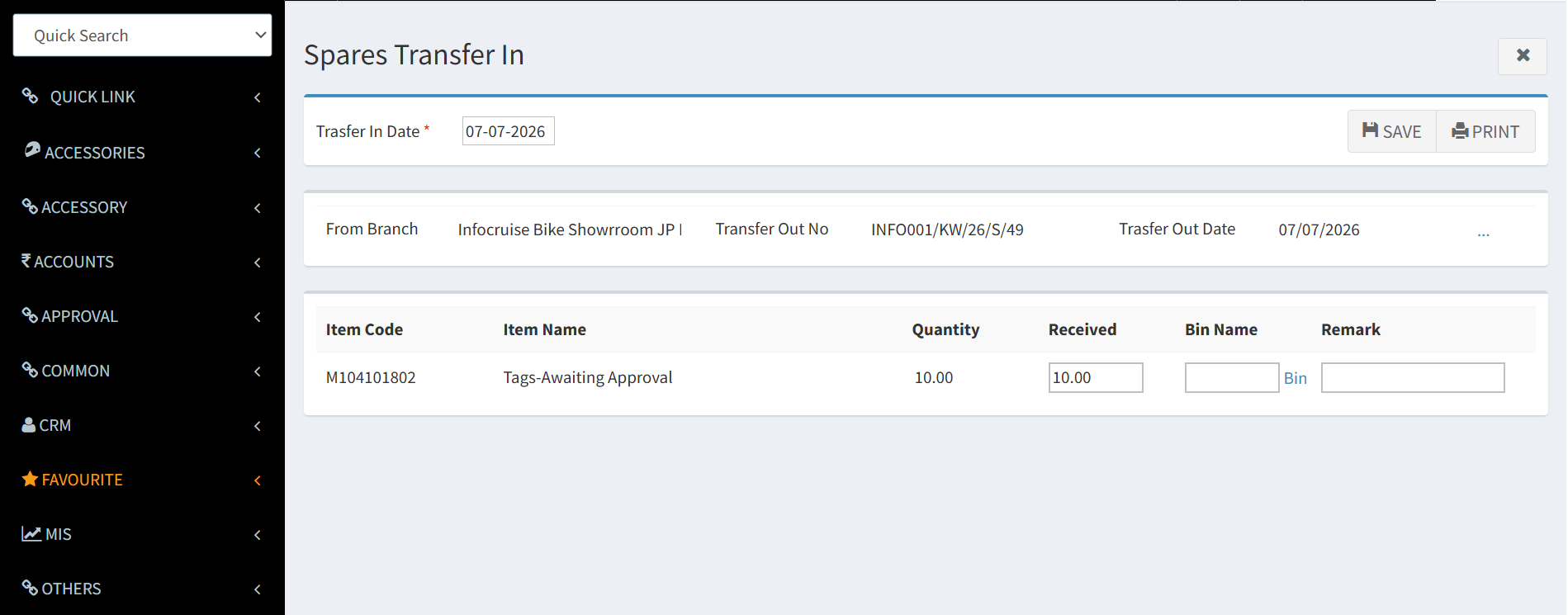
This stage is critical for maintaining inventory integrity. The system requires you to put on your inspector's hat and thoroughly verify the cargo.
Carefully review the Item Code and Item Name against the physical boxes in front of you.
Compare the sent Quantity with what you actually have in hand, and ensure the Received input box reflects the true physical count.
While the Bin Name is not available or pre-filled by default, it can be updated in the text field provided. Inputting the specific shelf or bin where this part will be stored saves your parts counter staff valuable time when they need to quickly retrieve the part for a waiting technician.
Step 4: Save and Update Local Inventory
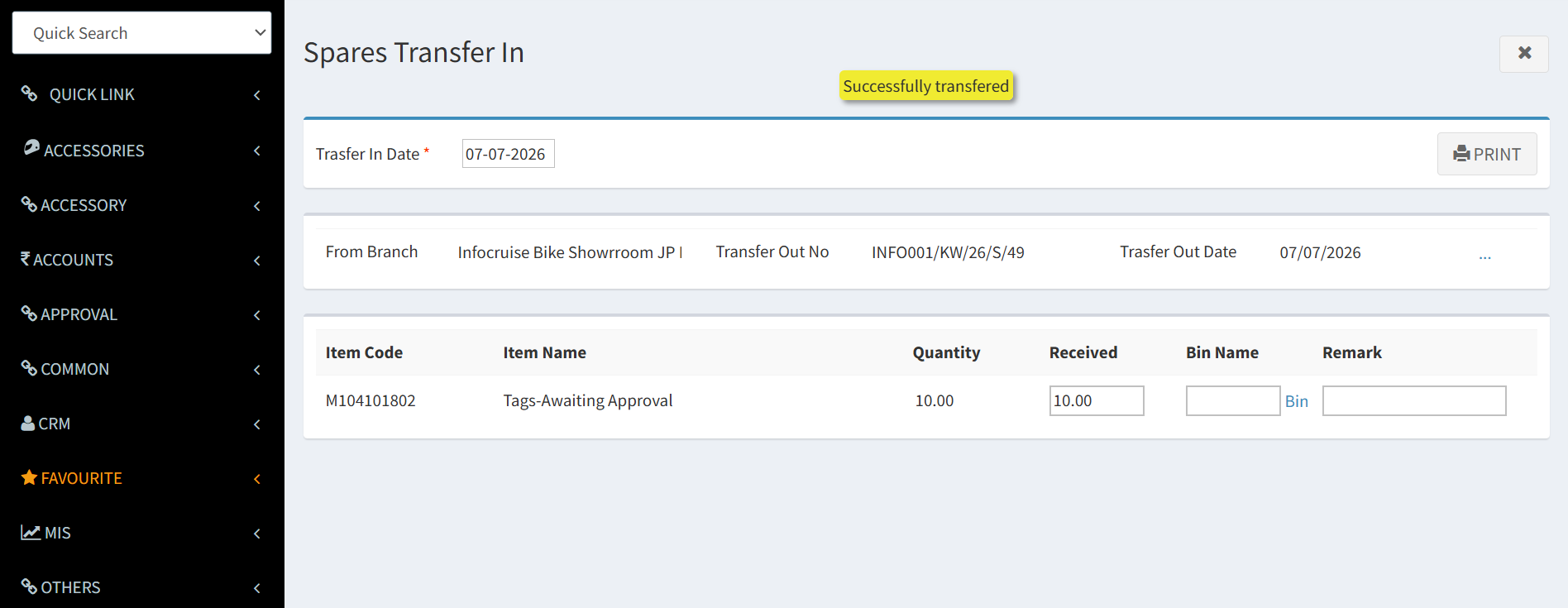
After updating and verifying all required information:
Click the SAVE button located at the top right of the data entry window.
Look near the top center of your screen for a yellow highlighted message stating "Successfully transfered".
Once it is saved, the spare will get updated in stock.
Important Business Rules
COCO to COCO transfers only: Spare transfer will happen in SAP only for COCO to COCO spare transfers.
System Boundaries: While the transfer is executed exclusively within SAP, the physical receipt of those spares must be done in the Gain DMS.
Verification is Mandatory: Always verify physical quantities against the sent quantities before saving to prevent phantom inventory.
Organizational Efficiency: While logging the receipt, updating the Bin Name is highly recommended as a standard operating procedure for optimal warehouse organization.
Process Outcome
Once the receipt is successfully saved:
The dealership's local stock is instantly updated in the Gain DMS.
Service advisors can confidently see the parts as available and allocate them to open repair orders.
Technicians can proceed with repairs without facing inventory bottlenecks.
The transfer cycle between SAP and the DMS is officially closed.
Conclusion
The Spare Receive process in the Gain DMS bridges the vital gap between central SAP network transfers and your local physical inventory. Proper receiving and bin assignment ensures accurate stock levels, faster repair turnaround times, and seamless operations across the entire workshop floor.