Vehicle Purchase Order
How to raise a Vehicle Purchase Order in Gain DMS: A Step-by-Step Guide
his document explains the step-by-step process for creating and submitting a Vehicle Purchase Order in DMS.
Gain DMS Vehicle Purchase Order Tutorial Video
Introduction
The Vehicle Purchase Order process enables dealerships to place vehicle procurement requests with manufacturers or suppliers for stock replenishment and operational requirements. Once submitted, the purchase order is shared with the manufacturer for fulfilment and tracking.
This guide covers:
- Creating a Vehicle Purchase Order
- Adding products and quantities
- Submitting the order
- Understanding order status tracking
- Handling partial deliveries (Back Orders)
Section 1: Navigate to Vehicle Purchase Order
Step 1: Open Vehicle Purchase Order Screen
- Login to DMS.
- Click Sales.
- Select Vehicle Purchase Order.
You will be redirected to the Vehicle Purchase Order Worksheet, where all open purchase orders are displayed.
The worksheet provides visibility into current and previously created orders.
Section 2: Create a New Vehicle Purchase Order
Step 1: Start New Order Creation
- Click + (Plus).
The system opens the Vehicle Purchase Order creation screen.
Step 2: Update Basic Order Information
Enter or verify the following information:
Supplier
Select the supplier from the list.
Example:
River Bike Private Limited
Delivery Branch
- Automatically populated based on the logged-in branch.
- Default selection can be verified before submission.
Order Date
- Automatically populated with the current date.
Review these details before proceeding.
Section 3: Add Vehicles to Purchase Order
Vehicles can be added individually into the order list.
For each product:
- Select Vehicle/Product
- Select Vehicle Color
- Enter Required Quantity
Repeat the process for all products that need to be ordered.
Example Information
| Product | Color | Quantity |
|---|---|---|
| Model A | Blue | 3 |
| Model B | Yellow | 1 |
Continue adding products until the complete requirement is captured.
Section 4: Submit Purchase Order
After verifying all products:
Click Submit Order
System Action After Submission
Once submitted:
- A unique Order Number is generated.
- Order request is sent to the manufacturer.
- Order becomes available for tracking.
Important Note:
Only after clicking Submit Order does the manufacturer receive the purchase request.
Creating an order alone does not initiate manufacturer processing.
Section 5: View Order in Worksheet
After successful submission:
The purchase order appears in the Vehicle Purchase Order Worksheet.
Initial status displayed:
Order Confirmed / Created
This indicates that:
- Order has been successfully generated
-
Manufacturer can process the request
Section 6: Understand Partial Inward / Back Orders
In some situations, manufacturers may not supply the complete requested quantity.
Example:
Requested Quantity: 10 Vehicles
Supplied Quantity: 6 Vehicles
Remaining Quantity: 4 Vehicles
Such cases are treated as:
Back Orders
System Status for Partial Supply
Orders with incomplete supply will display:
Partial Inward
This status indicates:
- Some vehicles have been received
- Remaining vehicles are still pending delivery
Users can continue monitoring these orders from the worksheet.
Order Status Reference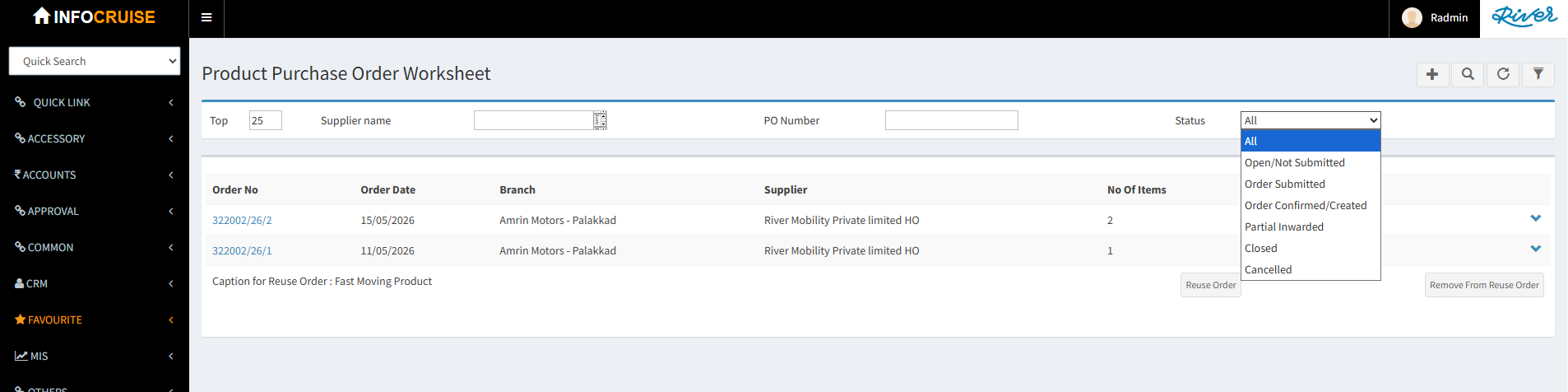
| Status | Meaning |
|---|---|
| Created | Order successfully created |
| Order Confirmed | Request submitted to manufacturer |
| Partial Inward | Partial quantity received; remaining pending |
| Completed | Full quantity supplied and received |
Process Flow Summary
Sales → Vehicle Purchase Order → Plus → Select Supplier → Verify Branch & Date → Add Products → Select Color → Enter Quantity → Submit Order → Order Number Generated
Completion
You have successfully completed the Vehicle Purchase Order process in DMS. This functionality enables dealerships to efficiently create, track, and manage vehicle procurement requests while maintaining visibility into order fulfillment status.